Your portal, explained
Short answers to the things students actually ask. Use the search box at the top: type a word like “cancel”, “credit” or “test” and the list on the left narrows to the pages that mention it.
The one thing worth knowing right now: to cancel or move a lesson we need at least 48 hours' notice, or the full lesson fee is charged. And the Request cancellation button in your portal sends us a message. It does not cancel anything by itself. See Changing or cancelling a lesson.
What you can do in here
- See your upcoming lessons, and what you covered in past ones.
- Track how close you are to being test-ready.
- Check how many hours you have left.
- Message your instructor or the school office.
- Update your own theory and practical test details.
Anything you can't do in here (booking a new lesson, moving one, paying) is covered below with what to do instead.
Getting in
Setting up your account
Your instructor sends you a personal link, usually by WhatsApp or text. Open it and you'll be asked to choose a password. That's all. Your email is already filled in, and everything your instructor has recorded so far, including any lessons and hours you've paid for, is attached to your account straight away.
“Keep me signed in on this device”. The tick box on the sign-in form decides how long you stay signed in: ticked (your own phone or laptop) keeps you signed in even after closing the browser; unticked (a shared computer) ends your session when the tab closes. If you're ever signed out unexpectedly, the sign-in screen tells you why.
Please use the link they sent you rather than signing up separately. If you create an account from scratch with a different email, it starts empty: none of your lessons or hours will be there, and it takes a person to join the two together. The link only works once, and it lasts 30 days from when your instructor last sent it. If it's already been used, you have an account: use Forgot password? instead. If it has expired, ask your instructor to send it again: everything they have recorded for you is kept.
Signing in day to day
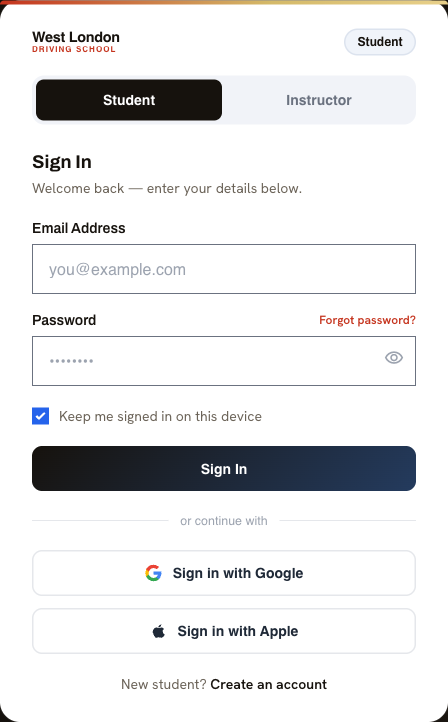
Go to westlondondrivingschool.co.uk and tap the round person icon at the top right, or go straight to westlondondrivingschool.co.uk/dashboard. Enter your email and password. Leave Keep me signed in on this device ticked on your own phone and you won't have to do it often.
 1
2
3
4
Signing in
- Make sure Student is selected. Instructors use the other tab.
- The email address the school has on file for you.
- Forgotten your password? This emails you a reset link.
- Leave this ticked on your own phone so you stay signed in.
If you're signed out unexpectedly
How long you stay signed in follows that same tick box. With Keep me signed in ticked, the portal only asks again after about a week of not touching it; unticked, it signs you out after 12 hours idle and whenever the tab closes. That's for your security: it holds your personal details. It isn't a problem with your account; just sign in again. A minute before an idle sign-out you'll see a Stay signed in button, and tapping anywhere on the page resets the clock.
Forgotten password
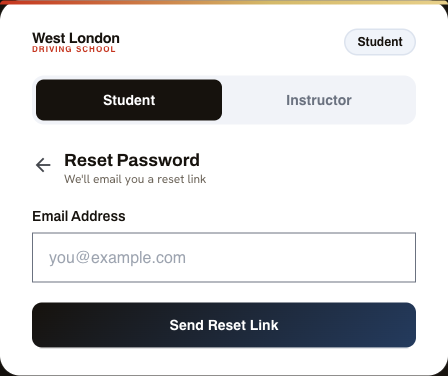
Tap Forgot password? on the sign-in screen and follow the email. If it doesn't arrive within a minute, check your spam folder. If you originally signed up with Google or Apple, use those buttons instead. You may not have a password at all.
What you'll see
- Enter the same email you sign in with and tap Send Reset Link. Nothing changes until you open the email and choose a new password.
Booking a lesson
There's no booking form inside the portal: the Book a Lesson buttons take you to the main website, where you pick a package, an instructor and a time.
- Choose what you want: a single session, a block of hours, a mock test, a motorway session and so on.
- Choose manual or automatic, then your instructor and a time. You'll only see instructors who teach in that car, and only times they're genuinely free. You don't choose the lesson length: it comes with the package you picked.
- Your details are already filled in when you're signed in.
- Choose how to pay: by card, or arrange it directly with your instructor.
Can't see a time that suits? The booking page also links to our WhatsApp booking assistant on 07380 399311, which finds a time with you in the chat.
 1
2
3
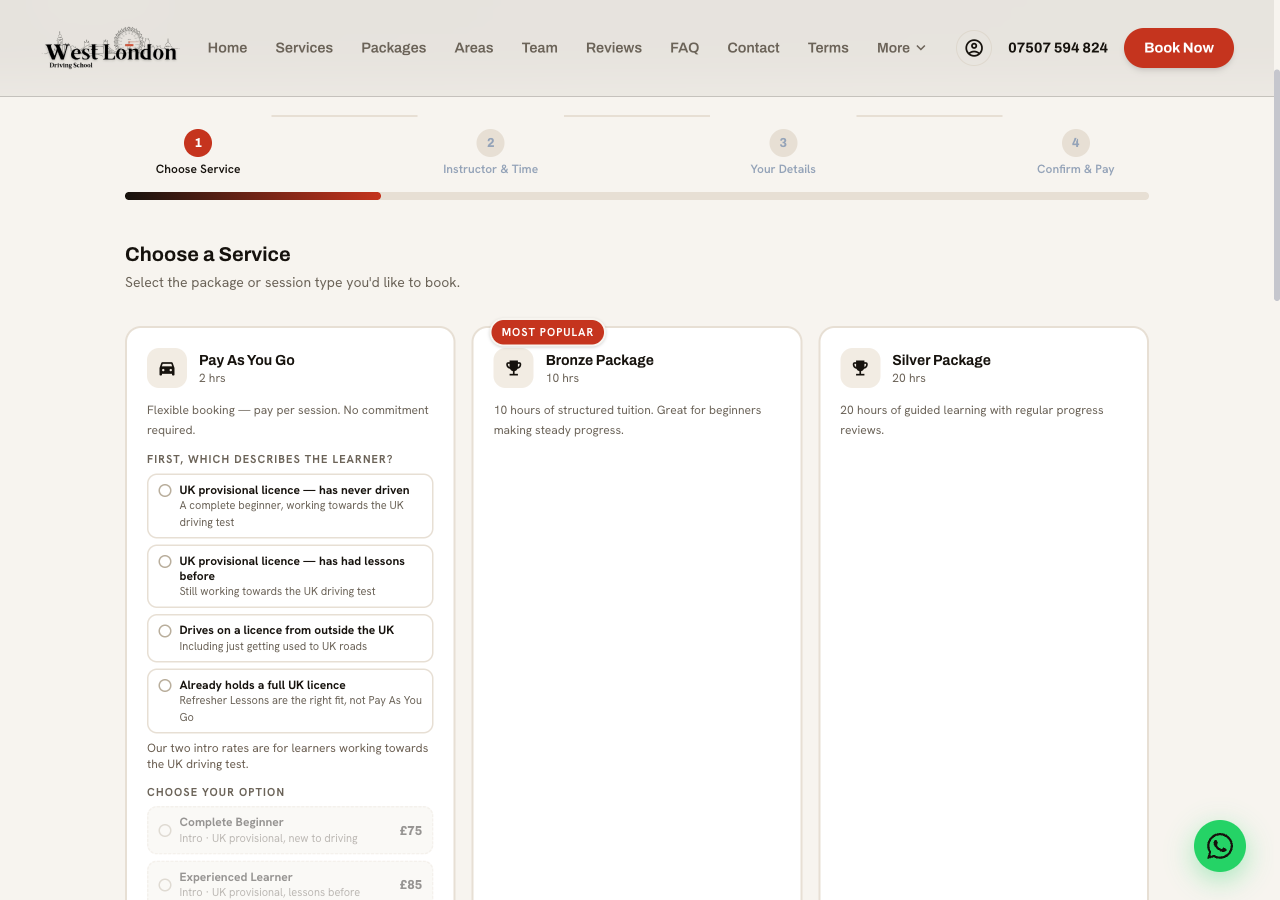
Step 1: what you're booking
- Four steps in all. You can go back at any point without losing what you've picked.
- Pay As You Go asks one question first: which describes the learner. No price can be chosen until it's answered.
- Then the right rate unlocks: £75 new to driving, £85 had lessons before, £95 everyone else, including overseas licences.
 1
2
Step 2: who teaches you
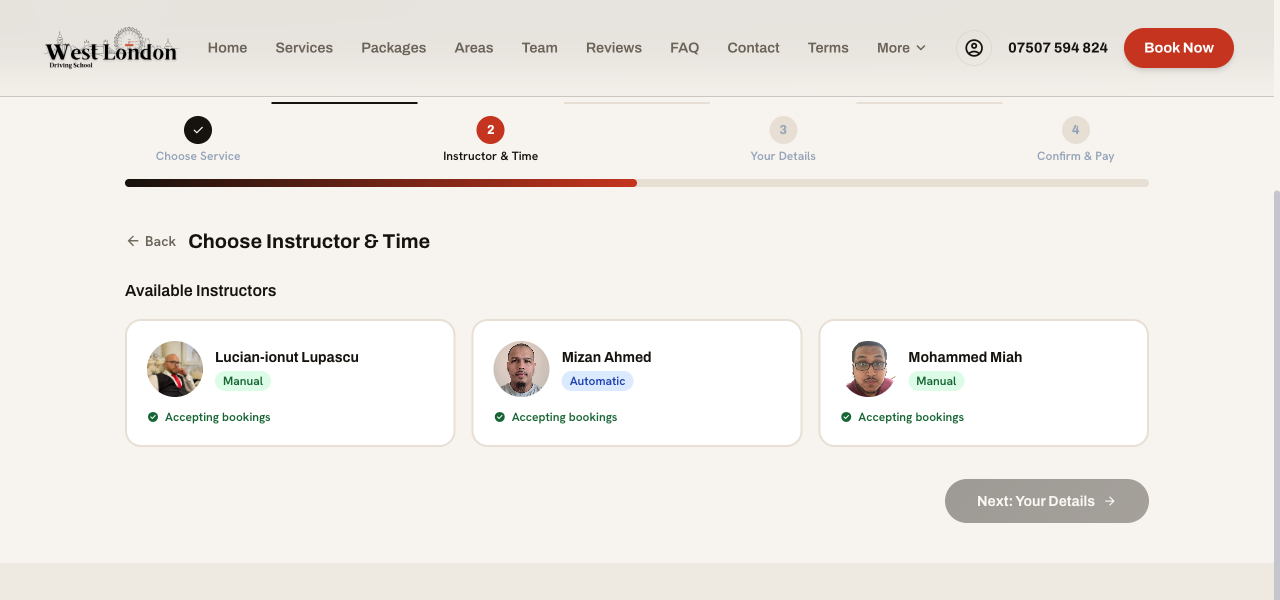
- First the page asks Which car do you want to learn in? Choose Manual or Automatic: the car you want to be tested in. Only instructors who teach in that car are listed. Not sure? A manual licence lets you drive both.
- Only instructors currently taking on students appear here.
 1
2
3
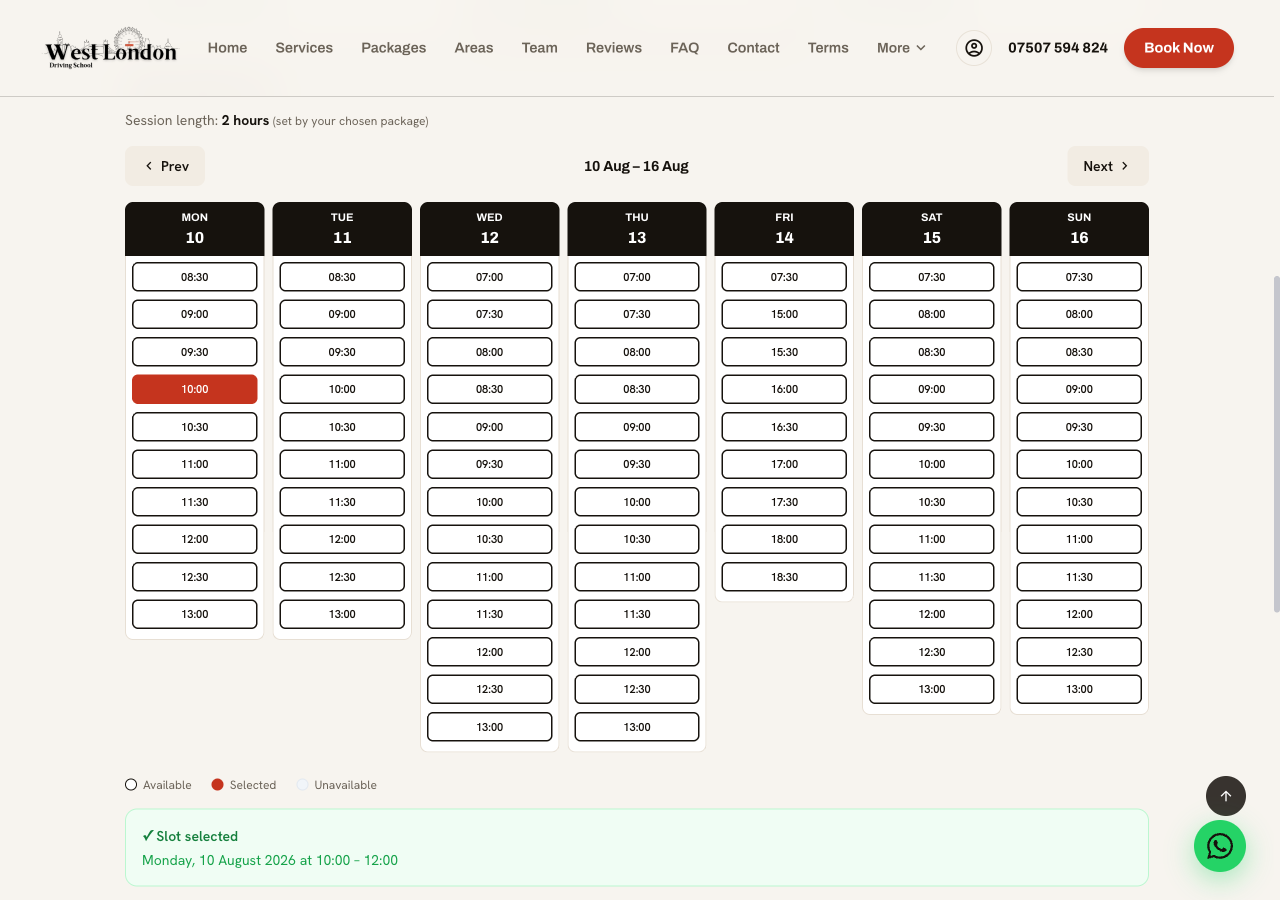
Step 2: picking your time
- Nothing suitable this week? Step forward with Next: the popular instructors fill up early.
- Tap a start time. It turns red to show it's selected. The length comes from your package, so you only choose when to begin.
- Always read this strip. It confirms the date and the full window, which is the bit people misread.
An empty week doesn't mean an instructor is unavailable. Busy instructors are often booked solid for a week or two. The calendar opens on the first week they actually have something free and tells you the date it has jumped to, and if you land on a full week it offers a Show me button that takes you straight to their next free slot. Only if it says they are fully booked for the whole period is there genuinely nothing, and even then it's worth messaging us, because cancellations come up.
 1
2
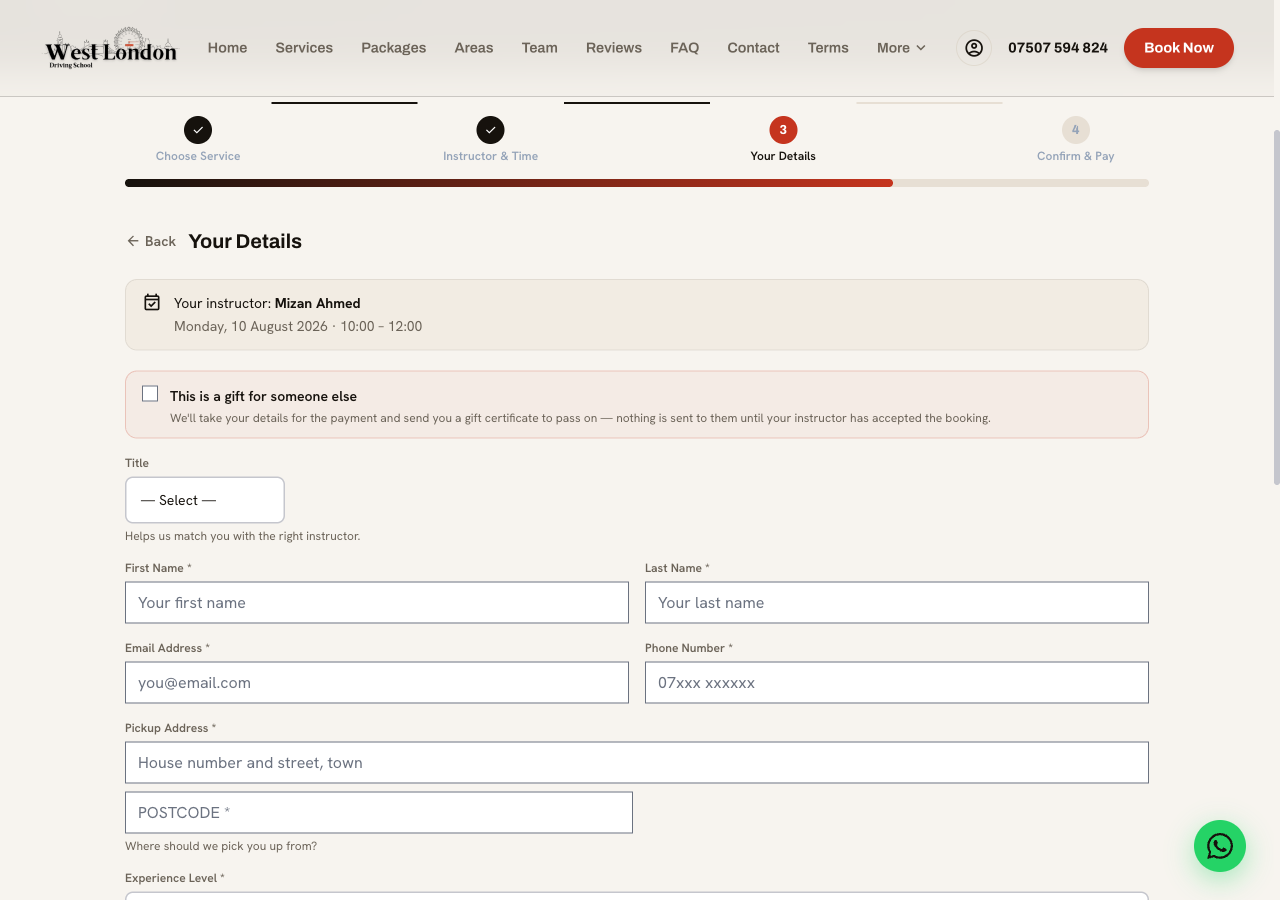
Step 3: your details
- Check this band before you go on: it's your last plain-English look at the instructor, date and time.
- The pickup address is where your instructor collects you, not where you live, if those differ.
What happens next
Your booking arrives as a request, and shows in My Bookings as Pending confirmation. Your instructor confirms it, usually within a day, and you'll get an email. It becomes a real lesson in My Lessons at that point.
If you paid by card, nothing is taken yet. The amount is held on your card and only actually charged when your instructor confirms. If the booking can't go ahead, the hold is released and no money leaves your account.
Why your booking might say “timing to be confirmed”
Longer sessions sometimes don't fit neatly into a gap in an instructor's diary. Rather than refuse the booking, we take it and your instructor agrees the exact timing with you. Nothing has gone wrong.
Booked online but didn't finish paying? Your booking still reached us. We save it before the payment page opens so a card problem doesn't lose your slot. Just reply to your confirmation email or message your instructor to sort the payment out.
On your phone
After you choose an instructor the page scrolls to Select a date & time: seven day chips for the week (the small number is how many times that day has), and the chosen day's times as buttons. Tap a time and the page scrolls to the green Slot selected box and Next. Use Prev / Next for other weeks; an empty day tells you the next free one.
Your instructor's number
Every booking email has a Your instructor box with their name, mobile and email. For anything about the lesson itself (how to pay, the pick-up point, a change of time), contact them directly; the office is for everything else.
Changing or cancelling a lesson
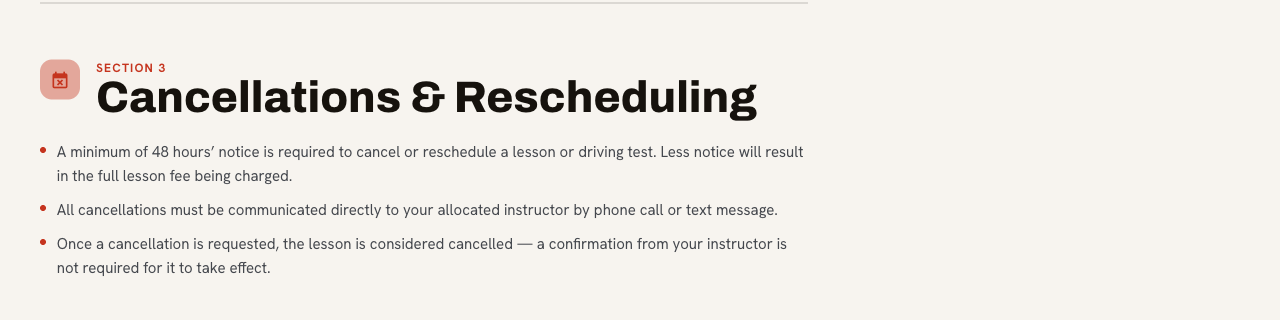
48 hours' notice, please. Less than that and the full lesson fee is charged. This isn't us being difficult: that slot was held for you and can't be filled at short notice.
How to do it
The quickest and most reliable way is to tell your instructor directly, by phone or text. That's what our terms ask for, and it means it's dealt with straight away. Their number is on the My Instructor page.
You can also use Request cancellation on a booking, which opens a WhatsApp message to the school with your booking details already filled in.
That button sends a message. It does not cancel your lesson. Your booking stays exactly as it is until a person acts on it. Please don't send it and assume you're done, especially if you're close to the 48-hour line. If you don't hear back, ring.
Once you've asked
Your lesson counts as cancelled from the moment you ask: your instructor doesn't have to confirm it back to you for that to be true. You don't need to chase for an acknowledgement.
 1
The rule in writing
- This is the published policy, on the main website under Booking & Payment Policy. It's the same wording your instructor works to, so there's never a question of what was agreed.
Moving a lesson rather than cancelling
Just ask your instructor. Rescheduling with 48 hours' notice costs nothing, and they'll usually find you something that suits better.
If you can't make it at short notice
Tell your instructor anyway, as early as you can. If you simply don't turn up, they'll wait 20 minutes and then the lesson is charged in full, so a message always leaves you better off than silence.
My Lessons
Two tabs: Upcoming and History. Each row shows the date, time, length, where you're being picked up, and how many hours it used from your balance.
The bands above and below each lesson
- Above a lesson, a grey band suggests what that lesson usually covers. It's a guide from our standard lesson plan, not a promise: your instructor teaches what you need.
- Below a completed lesson, you'll see the topics your instructor actually logged, and any notes they wanted you to have. That's the bit worth reading before your next lesson.
Nothing here is a button. This page is a record, not a place to change things. To move or cancel something, see Changing or cancelling a lesson.
Understanding My Progress
The most useful page in your portal, and the one most worth five minutes of your time.
The number that matters
Every skill is graded by your instructor out of ten, and six is the standard for test day. Not ten, six. The bar for each topic has a line marking it, so you can see at a glance what's there and what isn't.
Your test readiness percentage is simply how many of the core skills have reached six.
The four parts of the page
| Section | What it shows |
|---|---|
| Your journey | Six phases from Foundations to Test Preparation, and how much of each you've reached the standard in. |
| Tests & mock tests | Any mock or real test, with the faults breakdown and your instructor's notes. |
| Lesson roadmap | The typical order lessons run in. Marked approximate guide because it genuinely is: most people's journey differs. |
| All skills | Every topic, grouped, with your grade and how many times you've practised it. |
Rating yourself
Next to your instructor's grade there's a dropdown where you can record how confident you feel about a skill. It never changes your grade and it never moves your readiness percentage: those come from your instructor only.
Please use it honestly. The gap between how ready you feel and how ready you are is exactly what your instructor wants to know about. Saying you're a 4 on roundabouts when they've marked you a 7 is genuinely useful information, not an admission of failure.
If your progress looks empty
Grades appear as your instructor records them, usually after each lesson. Early on there simply isn't much there yet.
Your theory and practical tests
You book your own tests. We don't book them for you: demand is too high for us to manage it reliably. Use the official DVSA service on gov.uk. There are also apps that hunt for earlier cancellation slots for a small fee, and plenty of our students use them successfully.
Telling us your dates
Go to My Profile › My Test Information. You can record your theory test status and date, whether your practical is booked, its date, and which test centre. Then press Save Test Information.
Once your practical test date is saved, My Progress shows under Practical test the last day you can change or cancel it without losing the fee. DVSA needs 10 full working days' notice, and Sundays and public holidays don't count. After that day, changing or cancelling loses the fee unless it is for illness, injury, bereavement or a stolen licence.
This matters more than it looks: your instructor sees your test date on their calendar and plans your remaining lessons around it. If you book a test and don't tell anyone, you may not get the preparation you need in time.
Test day car hire
If you'd like to use your instructor's car for the test, ask them early: it needs booking in and it's for existing students. There are details on the main website under Services.
Your hours and payments
Everything is under My Payments.
How hours work
Whatever you buy (a single session or a block) becomes hours of credit on your account. Each lesson takes its hours out of that balance. The card at the top shows how many you have left, how many you've used, and roughly how many lessons that is.
“You are running low on credit” appears when you have two hours or fewer left. It's a heads-up so you're not caught out mid-course: nothing stops working and you can still book. Have a word with your instructor about topping up.
Where the numbers come from
- Transaction history shows every time hours went in or came out, and why.
- Payment records shows money received, and anything still outstanding.
If something doesn't look right (a lesson that took hours you didn't expect, or a payment that hasn't appeared), message your instructor. They can see the same records and can put it right.
Paying
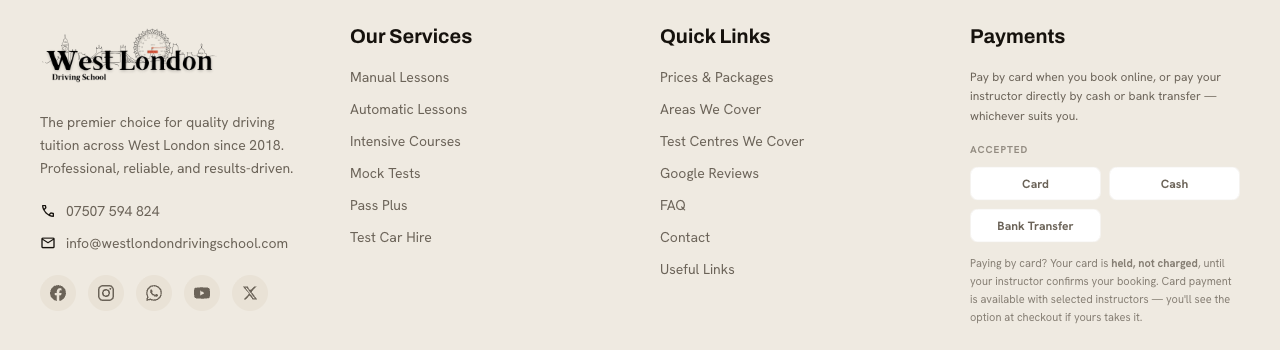
You can pay by card when booking online, or pay your instructor directly by cash or bank transfer. All three are fine; use whatever suits you. Lessons are paid for in advance, and blocks of hours are paid in full before they start.
 1
Accepted everywhere
- The three methods we take, and the reminder that a card is held, not charged, until your instructor confirms. Card isn't offered by every instructor: you'll see at checkout whether yours takes it.
 1
2
What things cost
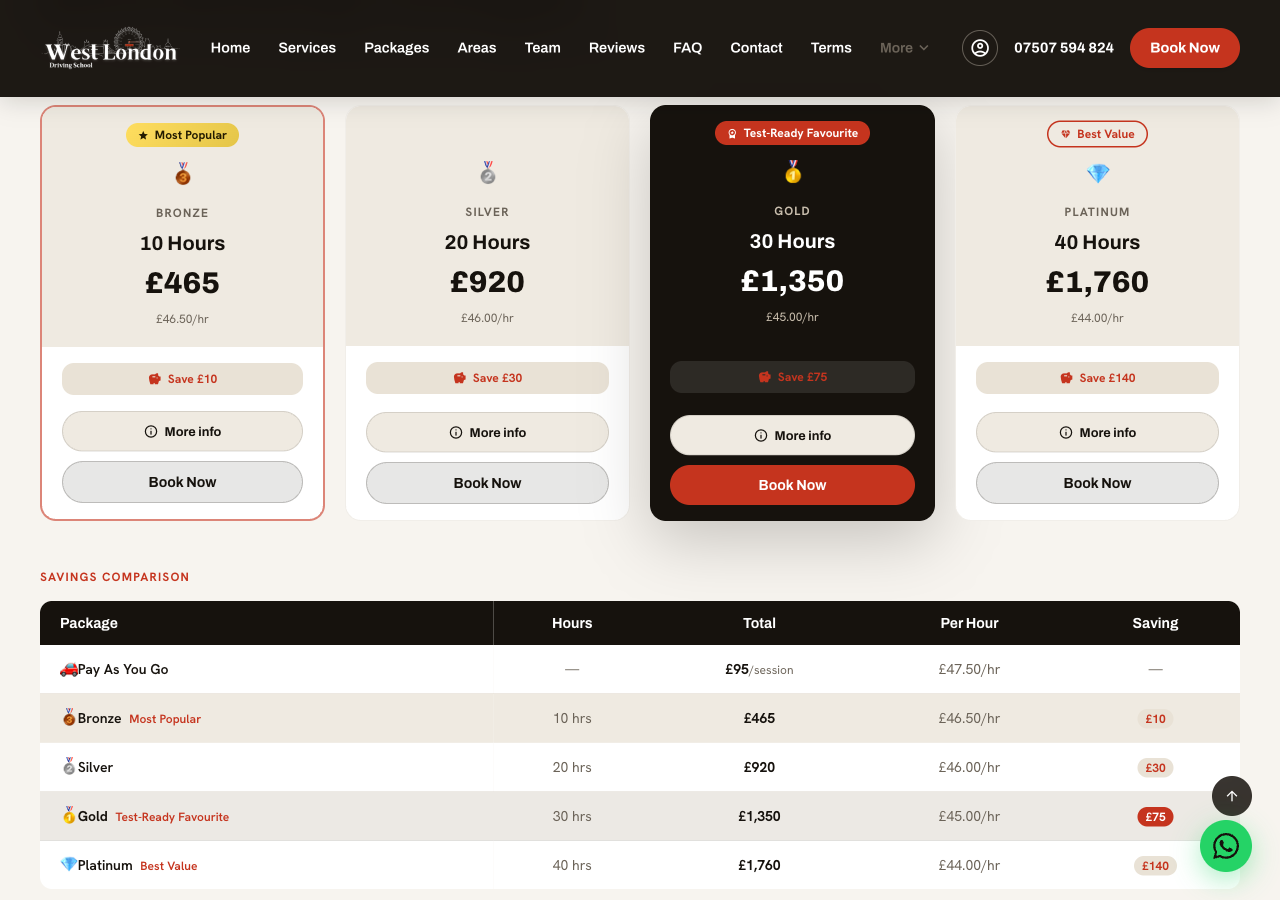
- The small figure under each price is the per-hour rate, the honest way to compare packages.
- The table below sets all of them against paying per session, so you can see the saving before you commit.
Invoices and receipts
These aren't in your portal: they're emailed to you.
- From your instructor. When your instructor asks you to pay for a package, they can send an invoice by email, with their pay link or their own bank details and a reference on it. When you pay (by card through their link, by bank transfer or in cash), you get their receipt by email. Both are issued by your instructor, who is paid directly, not by West London Driving School, and they say so. Your hours are added once the payment arrives.
- From the office. Invoices and receipts the school itself issues arrive as a link you can open and download as a PDF, with no sign-in needed.
Paying by bank transfer? Always use the reference on the invoice or message, so the payment can be matched to you. If anything about the bank details ever looks different from what you expect, check with your instructor before paying.
Refunds
Ask your instructor first: refunds are handled by them, not by head office. If you paid by card it goes back to your card; cash and bank transfers are refunded by bank transfer. Full details are in our terms on the main website.
Who keeps the record of your hours
Our instructors are self-employed, and when yours accepts a booking they choose whether your prepaid hours are tracked by the school (they show on this page and come off as lessons are taught) or in their own log. If it is their own log, this page shows “Your instructor keeps your hours log” instead of a number: ask them where you stand any time, keep your own note of the lessons you have taken, and expect reminders about unused hours from them rather than from us. The terms and the expiry periods apply either way (Student Terms, section 7).
A refund of unused hours
If your instructor refunds hours you did not use, they write them off on your record so this page stops counting them. If you see hours here that you have already been refunded, tell your instructor.
Messages
You have two conversations: one with your instructor, and one with the school office. Switch between them with the two buttons at the top of the page.
- Use your instructor for anything about your lessons: timings, pickup, how you're getting on.
- Use the office for anything about money, complaints, or if you can't reach your instructor.
Two ticks mean your message has been read. Your instructor gets an email nudge when you write, so you don't need to send it twice.
For anything urgent or last-minute, phone or text. Messages here are checked between lessons, not while driving. Anything inside 48 hours of a lesson deserves a phone call.
Documents and your details
Documents
Guides and information the school has shared with you, under Documents. Tap the download icon to save one.
Your details
On My Profile you can change your name, phone number and password yourself, and record your test information. Your email address is fixed: it identifies your account. If it needs changing, ask your instructor.
Some things are set by your instructor and shown read-only: your stage, transmission, package and remaining credit. If any of those look wrong, tell them.
Your instructor's details
My Instructor has their photo, a bit about them, and buttons to call, WhatsApp or message them.
Accepting the terms by link
If you booked over WhatsApp or by email and have no account, you will get a personal link to read and accept the Student Terms: two minutes, no password. Your instructor gets a copy of the record. Book on the website and the terms are accepted at checkout instead.
Deleting your account and your data
You can ask us to delete your account and the personal data we hold about you, from your own portal.
Asking for your account to be deleted
- Go to My Profile and press Delete my account….
- Read what will happen, add a note if you want to, and type DELETE in the box.
- Press Delete my account. To stop instead, press Keep my account.
What happens next
- You are signed out and your login is switched off straight away.
- We email you to confirm we have your request. The office deletes your personal data within one month, which is the legal limit, and emails you when it is done.
- If you have lessons booked or paid-for hours left, we contact you about them first.
- Payment records are kept for six years with your name removed, as the law requires.
Changed your mind? Reply to the confirmation email and we switch your account back on.
A copy of your data
You can also ask for a copy of the personal data we hold about you. Email info@westlondondrivingschool.com. We answer every request within one month.
Letting a parent see your progress
If you'd like a parent or guardian to follow how you're getting on (and many learners under 18 do), your instructor can send them a link to a read-only progress page. Ask your instructor to set it up, and ask them to turn it off whenever you want.
What they can see
| They see | They don't see |
|---|---|
| Lessons completed and hours remaining | Any prices, payments or your balance in pounds |
| When your next lesson is | Your pickup address |
| Topics covered and the notes shared with you | Your messages |
| Your progress towards test standard | Anything they can change: it's read-only |
They don't get an account and can't do anything on the page. It's a window, not a key.
Still stuck?
We'd rather hear from you than have you puzzle over it.
- About your lessons: message or ring your instructor. Their details are on My Instructor.
- About money, or anything else: message the school office from Messages, or WhatsApp 07507 594 824.
- By email: info@westlondondrivingschool.com. We usually reply within the hour, Monday to Sunday, 8am to 6pm.
If something has gone wrong
Please speak to your instructor first: most things are sorted out in a two-minute conversation. If that doesn't resolve it, there's a complaints form on the main website. We'll acknowledge it within three working days and give you a full answer within fourteen.